Website authors are responsible for ensuring their websites are accessible to users
with disabilities. CCRI provides a variety of tools, resources, and services to help
with this effort. This page features a recommended path.
Summary
Websites and web applications are integral to the university’s academic and administrative
work. CCRI is committed to making information, programs and activities on its websites
accessible to people with disabilities through its Web Accessibility Policy.
To report a web accessibility issue on CCRI's website please use the Report a Web
accessibility Issue form.
Step 1. Build an understanding of digital accessibility
People who use websites and web applications, digital documents, software, online
videos, kiosks, and other digital resources have a growing variety of characteristics.
As people who are responsible for digital resources, we can not assume that all our
users are the same or are accessing our content using similar tools and methods. Consider
these user characteristics:
Unable to see.People who are blind use either audible output (products calledscreen readersthat read web content using synthesized speech) or tactile output (a refreshable Braille
device).
Has dyslexia.People with learning disabilities such as dyslexia may also use audible output, along
with software that highlights words or phrases as they’re read aloud using synthesized
speech.
Has low vision.People with low vision may use screen magnification software that allows them to zoom
into all or a portion of the visual screen. Many others with less-than-perfect eyesight
may enlarge the font on websites using standard browser functions, such as Ctrl +
in Windows browsers or Command + in Mac browsers.
Has a physical disability.People with physical disabilities that affect their use of hands may be unable to
use a mouse, and instead may rely exclusively on the keyboard or use assistive technologies
such as speech recognition, head pointers, mouth sticks, or eye-gaze tracking systems.
Unable to hear.People who are deaf or hard of hearing are unable to access audio content, so video
needs to be captioned and audio needs to be transcribed.
Using a mobile device.People who are accessing the web using a compact mobile device such as a phone face
accessibility barriers, just like people with disabilities do. They’re using a small
screen and may need to zoom in or increase the font size, and they are likely to be
using a touch interface rather than a mouse. Also, both Apple and Android mobile devices
offer a wide variety of accessibility features, which users may have enabled.
Limited bandwidth.People may be on slow Internet connections if they’re located in a rural area or lack
the financial resources to access high-speed Internet.
Limited time.People who are very busy may have too little time to watch an entire video or audio
recording, but can quickly access its content if a transcript is available.
An accessible website works for all of these users, and countless others not mentioned.
Go through the page elements below to ensure you are meeting accessibility standards.
CCRI has an active digital accessibility community, and its members are eager to help
and support one another. For Assistance with your website please submit a ticket, or contact the webservices team directly.
Step 2. Clean house
A big step in ensuring your content is accessible is deleting content that is no longer
needed. If content is no longer actively maintained but is needed for reference,
content should be clearly marked as “Archived”.
Accessibility is a journey. Where do you start? Digital assets should be prioritized
by the critical nature of their functionality, their volume of traffic, and whether
users with disabilities are known to have a particular interest in them. Starting
with the highest priority websites, use the following tools and procedures to evaluate
them:
Test with a keyboard.Set your mouse aside and use the tab key to navigate through your web pages. You should
be able to access all interactive features (e.g., menus, links, form fields, buttons,
controls) and operate them by pressing Enter, space, arrow keys or other intuitive
keystrokes. If you are unable to access some of your site’s features, your site is
likely to have accessibility problems.
Always inspect your page before you publish!
Before you publish a page on your site always check it for compliance and quality
assurance.
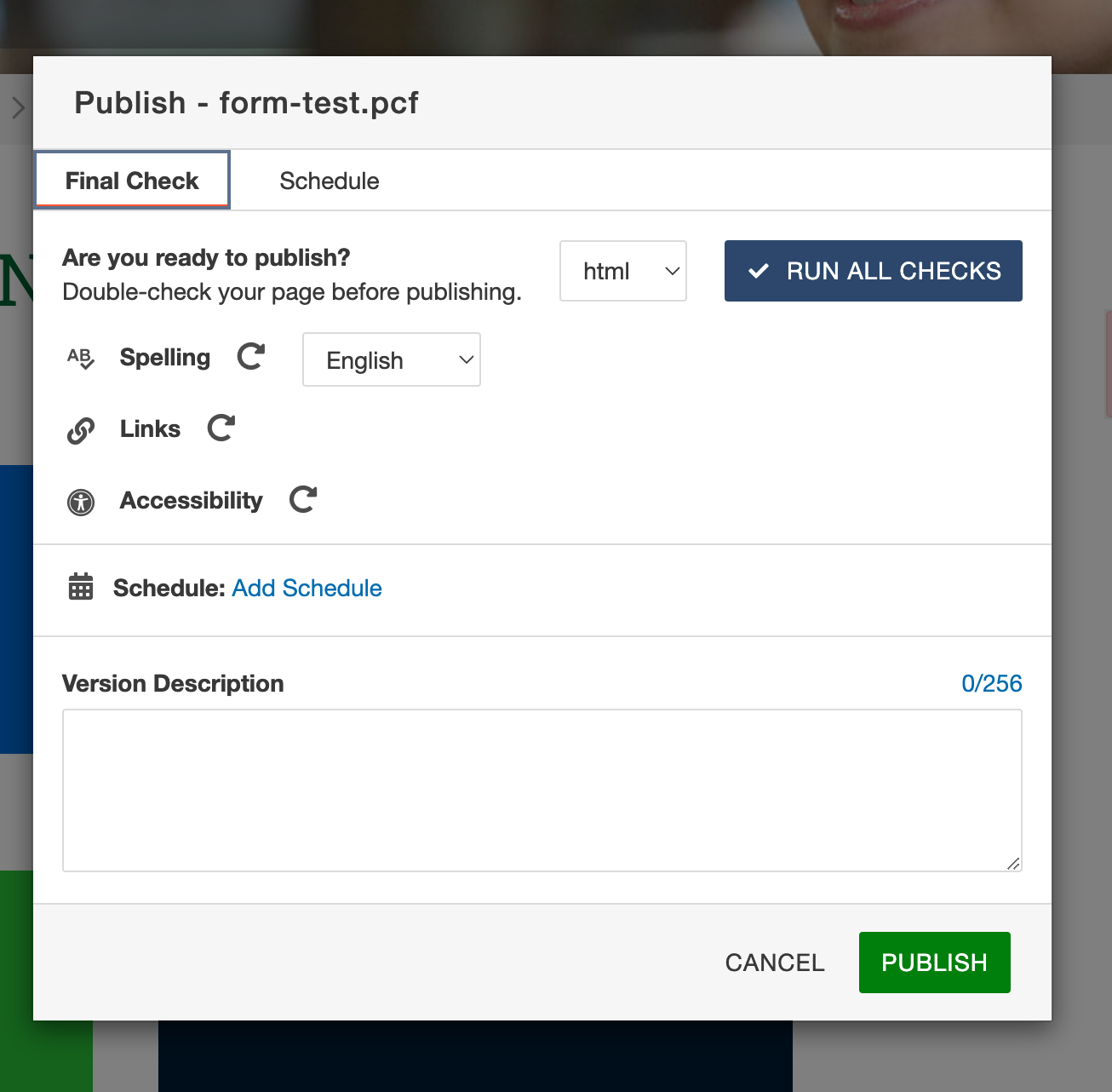
Step 1- After you edit your page and are ready to publish click the green publish button.
A box will pop up that will give you the option to check your spelling, links, and
accessibility.Always do these three checks before publishing your page.
Step 2- Click the "RUN ALL CHECKS" button to inspect your page.
Step 3- If there are errors, do not publish the page, click on them and make your corrections.
Correcting your spelling is straight forward. As for the links, what you want to watch
out for are 404 errors, they are broken links and there should be none on your page.
If your page has any Accessibility errors that you don’t understand, or, you cannot
access the part of the page to correct, please contact[email protected].
Step 5. Get help
If you get stuck with any of the previous steps, or simply have questions along the
way, Web Services is happy to help. Please contact:
At the Community College of Rhode Island, our Computer Science and Cybersecurity
programs are designed to equip students with essential skills for the digital age.