Website Accessibility Check List
1. Clean House
A big step in ensuring your content is accessible is deleting content that is no longer needed. If content is no longer actively maintained but is needed for reference, content should be clearly marked as “Archived”.
2. Make sure your content is good.
When creating a web page you want to make sure that you have enough good content. Around 300 words is a good amount to shoot for.
Be sure you don't block to much text together or people are far less likely to read it. Break up you paragraphs with headings and buttons.
Also, use images and other web elements such as cards and accordions to lay out your content in a friendly manner. See our web page guidelines for best practices.
Step 3. Ensure Your Content is Accessible
Step 4. Prioritize and review your websites
Accessibility is a journey. Where do you start? Digital assets should be prioritized by the critical nature of their functionality, their volume of traffic, and whether users with disabilities are known to have a particular interest in them. Starting with the highest priority websites, use the following tools and procedures to evaluate them:
-
Test with a keyboard. Set your mouse aside and use the tab key to navigate through your web pages. You should be able to access all interactive features (e.g., menus, links, form fields, buttons, controls) and operate them by pressing Enter, space, arrow keys or other intuitive keystrokes. If you are unable to access some of your site’s features, your site is likely to have accessibility problems.
-
Always inspect your page before you publish!
Before you publish a page on your site always check it for compliance and quality assurance.
Step 1 - After you edit your page and are ready to publish click the green publish button. A box will pop up that will give you the option to check your spelling, links, and accessibility. Always do these three checks before publishing your page.
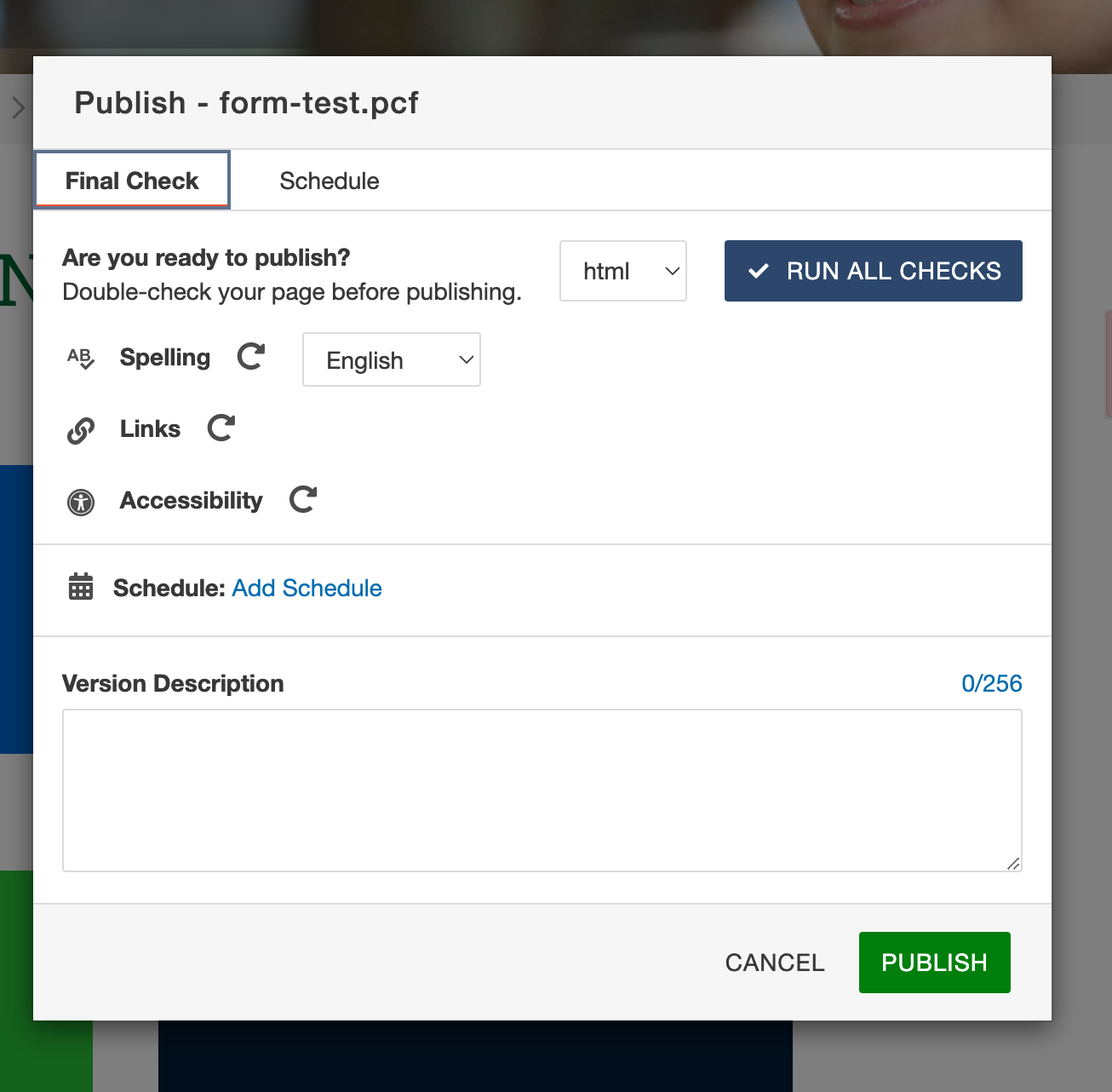
Step 2 - Click the "RUN ALL CHECKS" button to inspect your page.Step 3 - If there are errors, do not publish the page, click on them and make your corrections. Correcting your spelling is straight forward. As for the links, what you want to watch out for are 404 errors, they are broken links and there should be none on your page. If your page has any Accessibility errors that you don’t understand, or, you cannot access the part of the page to correct, please contact [email protected].
Step 5. Get help
If you get stuck with any of the previous steps, or simply have questions along the way, Web Services is happy to help. Please contact: [email protected]
Have A Question?
Contact Computer Science and CybersecurityAt the Community College of Rhode Island, our Computer Science and Cybersecurity programs are designed to equip students with essential skills for the digital age.