Accessible Headings
Headings are important for accessibility. They provide a hierarchy for the content. There are six levels of available headings, from H1 to H6, ranking in order of most to least important.
Headings provide a visual hierarchy for sighted users, who can scan the headings of a page to see what the page is about and find what they need quickly.
They provide a structural hierarchy for users of screen readers, who may be blind or have low vision or a cognitive disability. Screen readers or other assistive technology will convey to the user that there are headings and what level they are. Users can also bring up a list of headings on a web page or in a document.
How to Use Headings
Start with the H1 heading
The H1 is the first heading on the page and is located in the hero section. You can edit this heading by clicking on page properties > look under Custom settings for Page Heading.
Rules
- There should only be one H1 on the page.
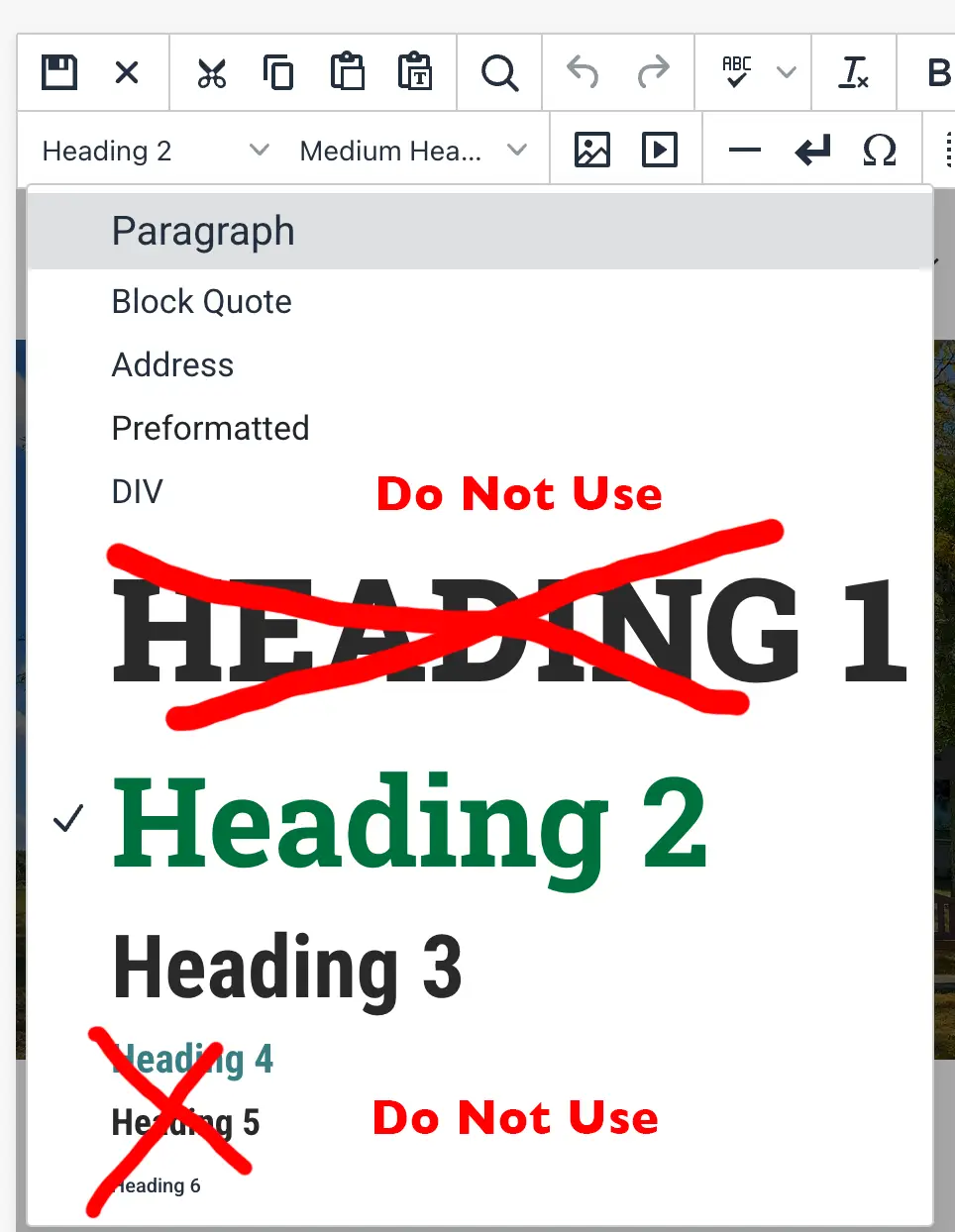
- Do not use the Paragraph drop-down in the wisiwig menu to add an H1. Your page already has an H1 which is editable by going to your page properties.

What Headings Should I Use?
The first heading on your page (after the H1 which is in your hero section and editable within the page properties) should be an H2. After that you can use an H3. We ask that you do not use any other headings!
Tips
-
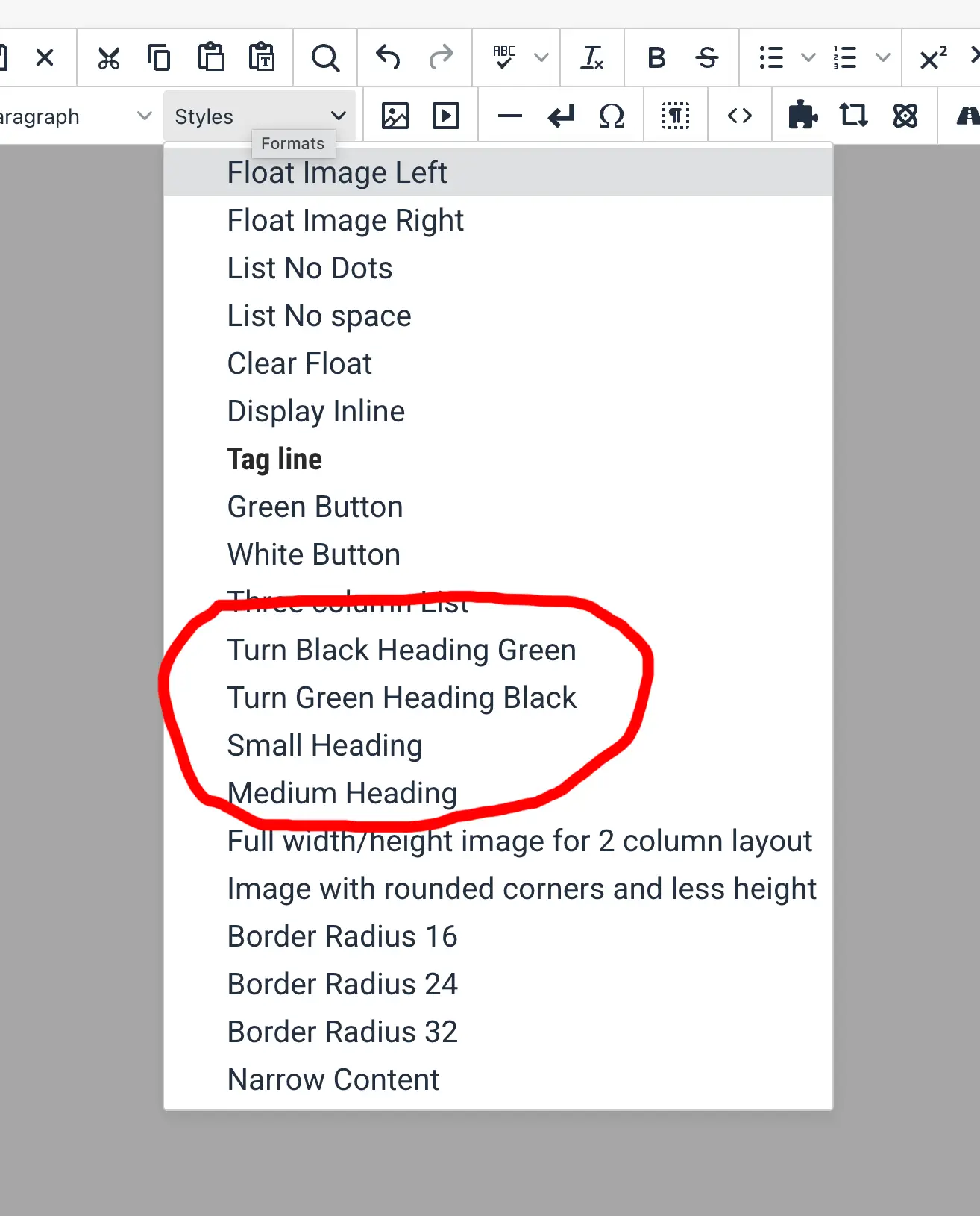
The H2 heading is green by default. You can change the color and size by using the style dropdown in the wisiwig menu.
-
You can turn the Green "or H2" heading black or the Black "or H3" heading green. You can also adjust the size with the small heading and medinm heading options.
Structural Hierarchy of Headings
-
As stated above you start with the H1 heading (which is already included on your page in the hero and editable in the page properties)
-
You then start your page with an H2 heading so it follows the H1.
-
After the H2 heading you can then use an H3.
-
When starting a new block of content you can then go back to an H2 heading followed by an H3
Have A Question?
Contact Computer Science and CybersecurityAt the Community College of Rhode Island, our Computer Science and Cybersecurity programs are designed to equip students with essential skills for the digital age.