Cybersecurity Tips
Is your Password Safe
Part 1
The following tips are brought to you by students in Professor Kevin Crawford's COMI-2035: Introduction to Computer Forensics.
Password Safety Tips
Passwords are everywhere in our digital life online nowadays. It’s important to make sure that we have strong passwords that we don’t reuse to keep all our accounts safe.
What is a strong password?
A password should be hard to crack or solve like a puzzle. It should take time to
get through.
• Aim for 12 characters in length (longer is better), and make it a sentence or phrase that you can remember.
• Use a variety of characters in your password including a mix of uppercase and lowercase letters (A-Z, a-z), numbers
(0-9), and symbols (!@#$%^&*()_+=-`~[]{}|;':",./<>?).
• Make sure never to reuse the same passwords. This is CRITICAL! Once one gets compromised, then they all get compromised.
• Try not to use common words, dates, names, or easily identifiable information about you. These are usually used first by the automated tools used by hackers. Use
a passphrase like "I love to eat 2 pizzas on Fridays!" as this has all the requirements
of a password: it is long and complex but is easy for you to remember.
Is your Password Safe
Part 2
The following tips are brought to you by students in Professor Kevin Crawford's COMI-2035: Introduction to Computer Forensics.
Password Safety Tips
Passwords are everywhere in our digital life online nowadays. It’s important to make sure that we have strong passwords that we don’t reuse to keep all our accounts safe.
Should I use the same password for everything?
Do the opposite of that. Use a different password for everything (managed by a password
manager). The problem with using the same password for different services is that
if any one of those services is compromised, your password is liable to end up on
the dark web alongside email. Enterprising black hat hackers will try that username
and password combination against a variety of websites and if you use the same password,
you’ll be in serious jeopardy at that point.
Is your Password Safe
Part 3
The following tips are brought to you by students in Professor Kevin Crawford's COMI-2035: Introduction to Computer Forensics.
Password Cracking Times: Faster Than you Think!
How often should I change my password and should I reuse passwords?
The conventional wisdom is “change your password every 6 months to 1 year.” However,
as someone who works in tech, I have literally hundreds of passwords. It’s totally
impractical for me to change them, which is why I use highly random, very long passwords
that are resistant to cracking, and I use different passwords for every website. Additionally,
I enable Multifactor Authentication on every service that offers it.
This being the case, I feel comfortable in not changing my passwords regularly. Ironically,
Microsoft stopped enforcing password expirations because it found that people would
make their passwords weaker each time they picked a new one.
Where should I save my passwords?
The safest way to store passwords is using a trusted password manager. It securely encrypts and stores passwords for easy access.
Summary:
We all need passwords to use different accounts in today’s online connected world. We need to use unique passwords that are not reused, are long, varied, and complex, and are stored securely in a password manager. These tips will help keep you protected against attacks that compromise your entire online life.
PHISHING
The following tips are brought to you by students in Professor Elizabeth Charette’s COMI 2037: Introduction to Cybersecurity.
"Don't take the bait"
Phishing is a deceptive practice where criminals use fake emails, text messages, or phone calls to trick victims into revealing sensitive information. Phishing emails may seem harmless at first glance, but they are designed to steal your data or install malicious software. Being able to spot the red flags is crucial to keeping your personal information safe.
Tips to Avoid Falling for Phishing Scams:
• Generic Greetings: Because scammers often target a broad set of victims at one time,
they
often use generic greetings like "Dear customer," or they may even skip the greeting
altogether.
• Grammatical Errors: Phishing emails often contain grammatical errors, misspellings,
odd
capitalization, and unnatural phrasing. While typos happen, legitimate business emails
shouldn’t have these mistakes.
• Low-resolution Logos or Images: Scammers often use copied logos to appear legitimate,
but low-quality, blurry, or improperly sized logos are red flags. Be cautious if a
logo looks
fuzzy, pixelated, stretched, or requires close inspection to see it clearly.
• Suspicious Sender Email Addresses: Look closely at the sender's email address. Phishers
might create addresses that look similar to a real company, but with a minor typo
or extra
character. For example, “appel.com” instead of “apple.com.”
• Strange URLs: Legitimate companies use clear URLs, while phishing emails often link
to
suspicious ones. Hover your mouse over the link to see the URL before you click it.
• Requests for Personal Information: Legitimate companies won't ask for sensitive
information like passwords or Social Security numbers through email. If an email tells
you to verify your account by clicking a link and entering your login details, it's
likely a phishing attempt.
Stay safe and remember—don’t take the bait!
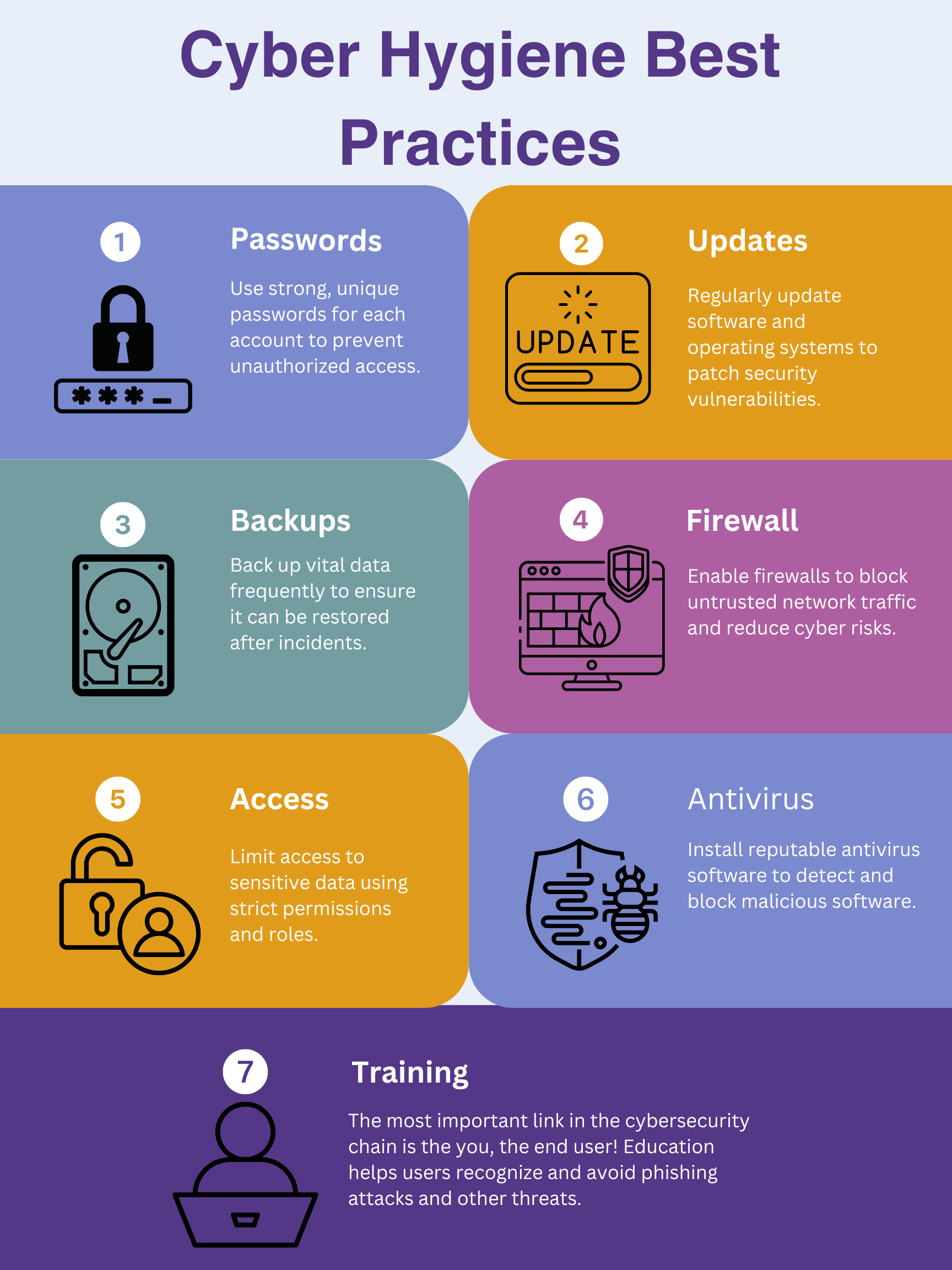
Cyber Hygiene Best Practices
The following tips are brought to you by students in Professor Elizabeth Charette’s COMI 2037: Introduction to Cybersecurity.
How to Protect Yourself on the Dark Web
Submitted by Kevin Crawford’s COMI-2035 Computer Forensics Class
The dark web is a hidden subset of the internet that can only be accessed through special software. Because of this, many illegal activities happen on the dark web, including the sharing of personal information that hackers have acquired. So how can you protect yourself?
Protecting Your Cell Phone:
- Download apps only from the App Store or Google Play.
- Keep your software (Operating System and Apps) updated.
- Don’t click links from text messages or email you don’t know.
- Turn off Bluetooth and Wi-Fi when you’re not using them.
- Use a lock screen with a PIN or fingerprint.
- Use an antivirus app to keep your phone safe.
- Use a VPN when on public Wi-Fi.
- Check app settings, don’t let apps use your camera or location if not needed.
Protecting Your Desktop and Laptop:
- Use antivirus software.
- Use a non-administrator account for daily activities.
- Keep your software (Operating System and Apps) updated.
- Keep the firewall on to block unauthorized access.
- Don’t download illegal or free movies/software from strange websites.
- Use a VPN to keep your online activity private.
- Back up your files often in the cloud or an external drive.
- Be careful with emails, don’t click links unless you trust the sender.
- Turn on encryption to protect your files if your computer is stolen.
- Avoid using public Wi-Fi.
- Avoid using untrusted websites.
- Avoid clicking on pop-up windows.
- Cover webcam when not in use to prevent unauthorized access.
Protecting Yourself Online:
- Don’t go on dark web sites.
- Use strong passwords that are hard to guess.
- Use different passwords for each account.
- Turn on 2-step verification.
- Avoid sharing personal information online.
- Keep your phone, computer, and apps updated.
- Don’t click strange links or open weird emails.
- Monitor your accounts for any suspicious activity.
If Your Info Is on the Dark Web
- Change all your passwords right away.
- Turn on 2-step verification for all accounts.
- Tell your bank if your card or info was leaked.
- Freeze your credit to stop identity theft.
- Visit identitytheft.gov if someone is using your info.